
Wedding Planning
Wedding QR Code Photo Sharing: Making It Easy for Older Guests
A practical, inclusive guide to using a wedding QR code for photo sharing so older guests can participate effortlessly — no apps, no confusion, no condescension.

Why Wedding QR Code Photo Sharing Should Work for Everyone
A wedding QR code is one of the simplest ways to collect photos from guests — but only if everyone can actually use it. Your older guests have witnessed decades of love stories, and their photos capture perspectives no one else will get. The grandparent smiling during the first dance, the great-alect catching the bouquet toss from the back row, the family friend who remembers your parents' wedding — these moments deserve a place in your album.
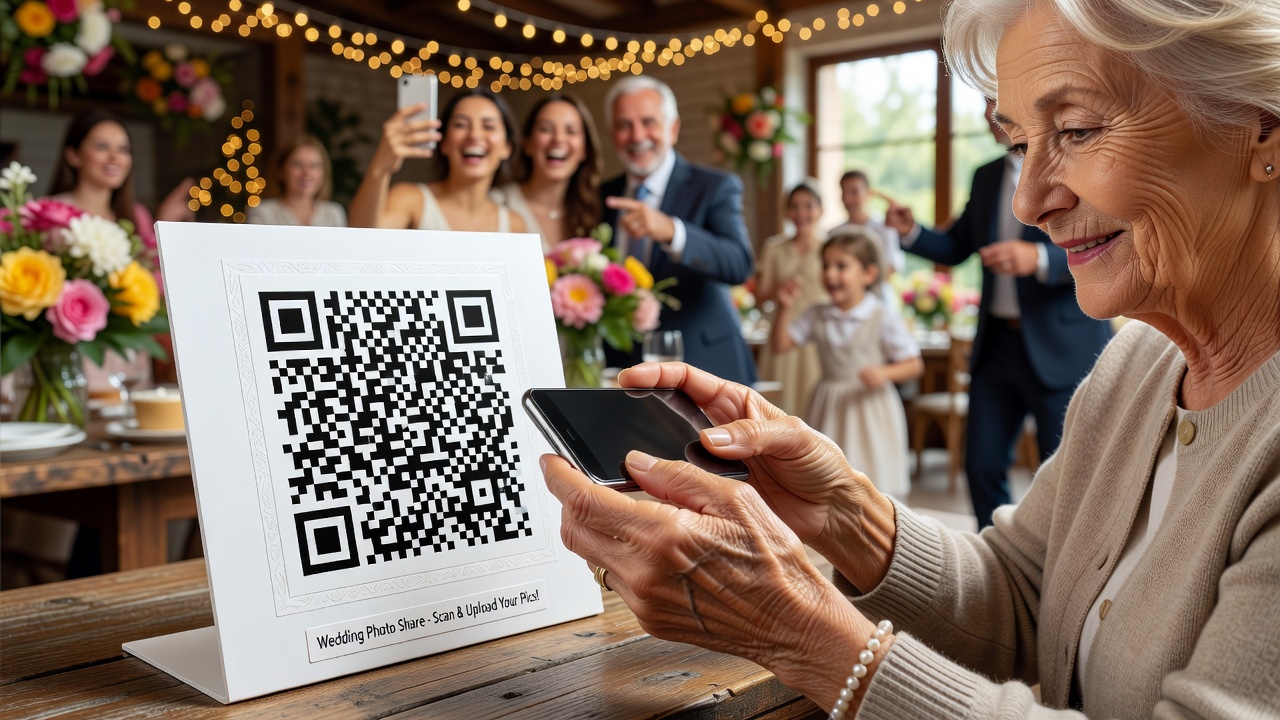
The good news? You don't need everyone to be tech-savvy. With a few thoughtful choices, a wedding QR code can work for every generation at your reception. This guide walks through no-app solutions, simple step-by-step instructions, and respectful ways to offer in-person help — so nobody feels left out or talked down to.
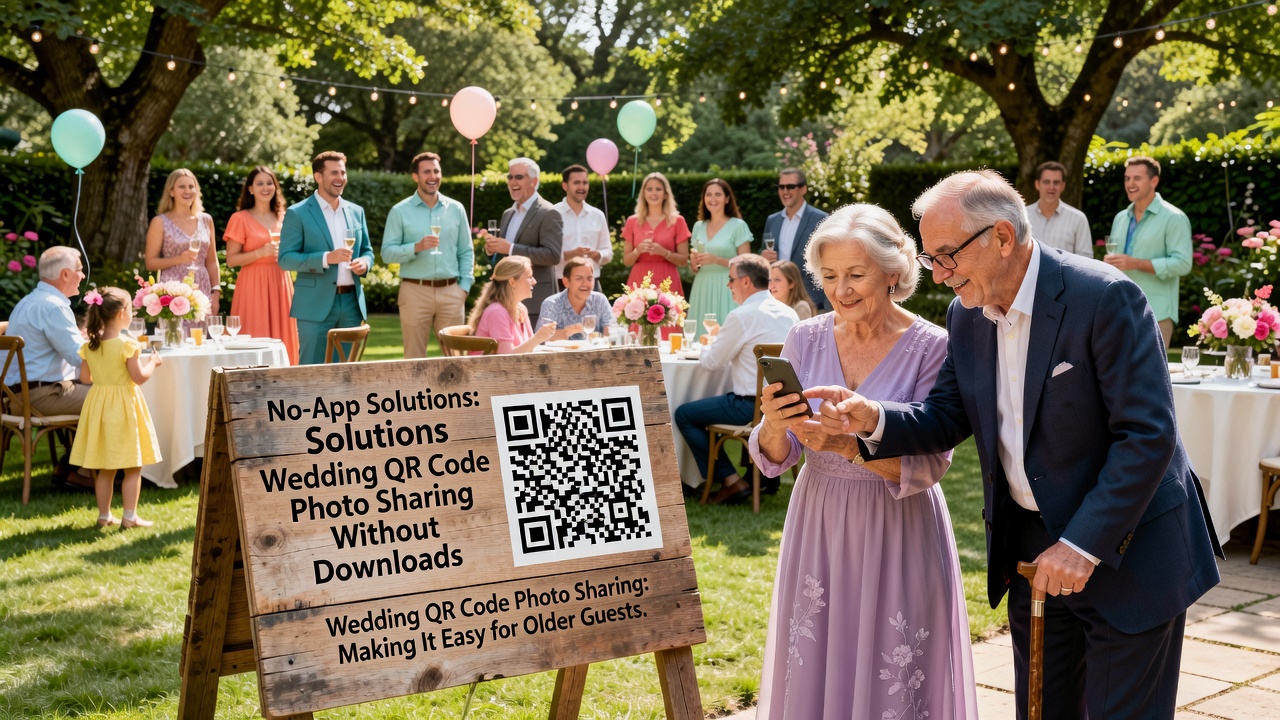
No-App Solutions: Wedding QR Code Photo Sharing Without Downloads
The biggest barrier for older guests isn't reluctance — it's the assumption that they'll need to download something, create an account, or remember a password. Remove that barrier entirely with these no-app approaches:
QR Codes Linked to a Shared Album
A wedding QR code displayed on table cards, signage, or printed inserts can link directly to a shared photo album — no login required. Services like Google Photos shared albums, Apple Shared Albums, or dedicated wedding platforms like WedShoots allow guests to upload with a single scan and tap. The QR code does the work; the guest just points their camera at it.
Email-Based Photo Sharing
Some guests are perfectly comfortable with email but wary of QR codes and apps. Set up a simple dedicated email address — something like share@yournameswedding.com — and print it on cards at every table. Guests attach their photos and hit send. It's familiar, straightforward, and requires zero new skills.
Printed Instruction Cards
Whatever method you choose, a printed card at each place setting makes all the difference. Keep it to three steps, large font, and one clear path. We'll cover exactly what to put on these cards below.
Simple Step-by-Step Instructions for Non-Tech-Savvy Guests
Here's what to print on your instruction cards. Test these steps with a relative who isn't tech-comfortable before the wedding — if they can follow them, anyone can.
For QR Code Sharing (No App Needed)
- Step 1: Open the camera app on your phone — the same one you use to take photos.
- Step 2: Point the camera at the square code on this card. Hold it about 8–12 inches away.
- Step 3: A yellow or white link will appear at the top of your screen. Tap it once.
- Step 4: Tap the option to upload or add a photo. Select the photos from your wedding gallery and tap send.
That's it — four steps, no app download, no account. If the link doesn't appear, there's a backup: type the short web address printed at the bottom of the card into your phone's browser.
For Email Sharing
- Step 1: Open the email app you normally use.
- Step 2: Start a new email and type the address on this card: share@yournameswedding.com
- Step 3: Tap the attachment icon (usually a paperclip) and select your photos.
- Step 4: Tap send. You're done!
Offering In-Person Help Without Being Condescending
This is where many well-meaning couples and families stumble. The goal is to make help available without making anyone feel like they're being treated as incapable. A few principles go a long way:
Frame It as a Group Activity, Not a Tutorial
Instead of walking over to individual older guests and asking if they need help with the QR code, set up a shared photo moment. A sign that says "Bring your phone here — we'll help you share your photos!" at a designated table works better than singling anyone out. Make it feel like a fun station, not a help desk.
Assign a Patient Helper — Not a Hoverer
Choose one or two people — maybe a younger cousin or a gregarious family friend — to staff the photo-sharing station during the first hour of the reception. Their job: be available, not intrusive. If someone walks up, great. If not, the instructions on the cards should handle it. The helper is a bonus, not a babysitter.
Use the "Show Me Your Favorite Photo" Approach
If you notice a guest struggling but they haven't asked for help, open with curiosity, not correction: "I'd love to see the photos you've taken today — want to make sure they make it into our album?" This invites collaboration rather than implying they're doing something wrong.
Never Grab the Phone
This should go without saying, but: ask permission before touching someone's device. Some people are protective of their phones for very good reasons. If you need to demonstrate a step, hold your own phone and show them on yours, then let them replicate it on theirs.
Backup Plans for the Unexpected
Even with great instructions and helpful people, things go wrong. A few backups:
- Print the full web URL below the QR code on every card — if the code doesn't scan, the link still works when typed.
- Collect phones at the end. Some guests would rather hand over their phone and let someone else send the photos. Have a trusted person ready to do a quick photo transfer at the end of the night.
- Follow up after the wedding. Send a thank-you message a day or two later with the sharing link again. Some guests take photos but forget to upload during the celebration.
Frequently Asked Questions
Do guests need to download an app to use a wedding QR code?
No. Most modern phone cameras can scan QR codes natively — just open the camera app and point it at the code. A link appears on screen, and tapping it opens the photo album in the browser. No download required.
What if an older guest doesn't have a smartphone?
That's perfectly fine. They can share photos taken on a digital camera or disposable camera by emailing them later, or you can collect their device at the end of the night and upload the photos yourself. A follow-up message after the wedding with a simple sharing link also works well.
How do I make sure the QR code actually works at the venue?
Test it at the venue before the wedding day. Check that Wi-Fi or cell service is strong enough for uploads, and make sure the QR code links to a page that loads quickly. Print the full web address as a backup on every card in case scanning fails.
Every Photo Matters
Your older guests have a lifetime of experience showing up for the people they love. Their photos from your wedding day will carry a warmth and perspective that no professional shot can replace. By choosing a wedding QR code system that's genuinely accessible — no apps, clear instructions, patient help — you're telling every guest that their contribution matters, regardless of how comfortable they are with technology.
That's not just good photo sharing. That's good hospitality.
Quick answers
Do guests need to download an app to use a wedding QR code?
No. Most modern phone cameras scan QR codes natively — just open the camera app and point it at the code. A link appears on screen, and tapping it opens the photo album in the browser.
What if an older guest doesn't have a smartphone?
They can share photos by emailing them later, or you can collect their device at the end of the night and upload the photos yourself. A follow-up message with a sharing link also works.
How do I make sure the QR code works at the venue?
Test it at the venue before the wedding day. Check Wi-Fi or cell signal strength, ensure the QR code links to a fast-loading page, and print the full web address as a backup on every card.