
Event Planning
How to Use a QR Code for Graduation Party Photos: Complete Setup Guide
Learn how to use an event QR code to collect graduation party photos from classmates, family, and friends across every celebration with this complete step-by-step setup guide.
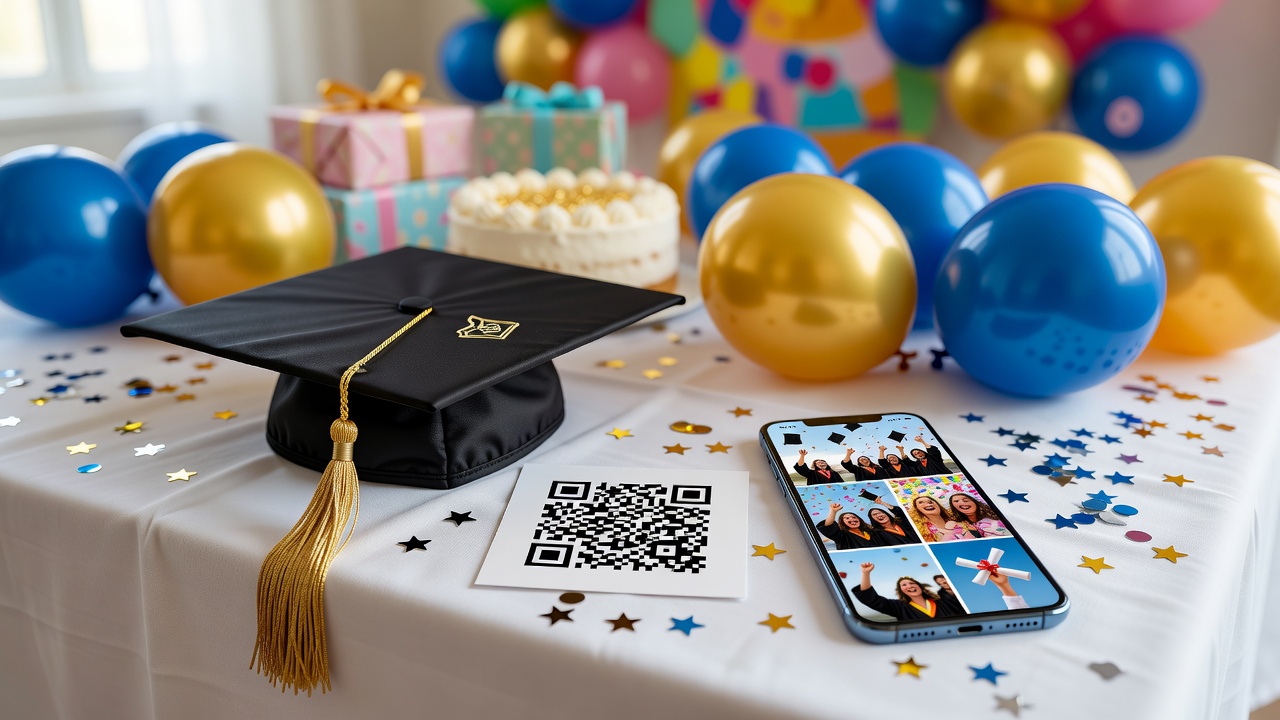
An event QR code is the simplest way to collect graduation party photos from every guest across every celebration. Instead of chasing down friends for their pictures weeks later or scrolling through scattered group chats, a single scannable code lets classmates, family, and guests upload shots in real time — all organized in one shared album.
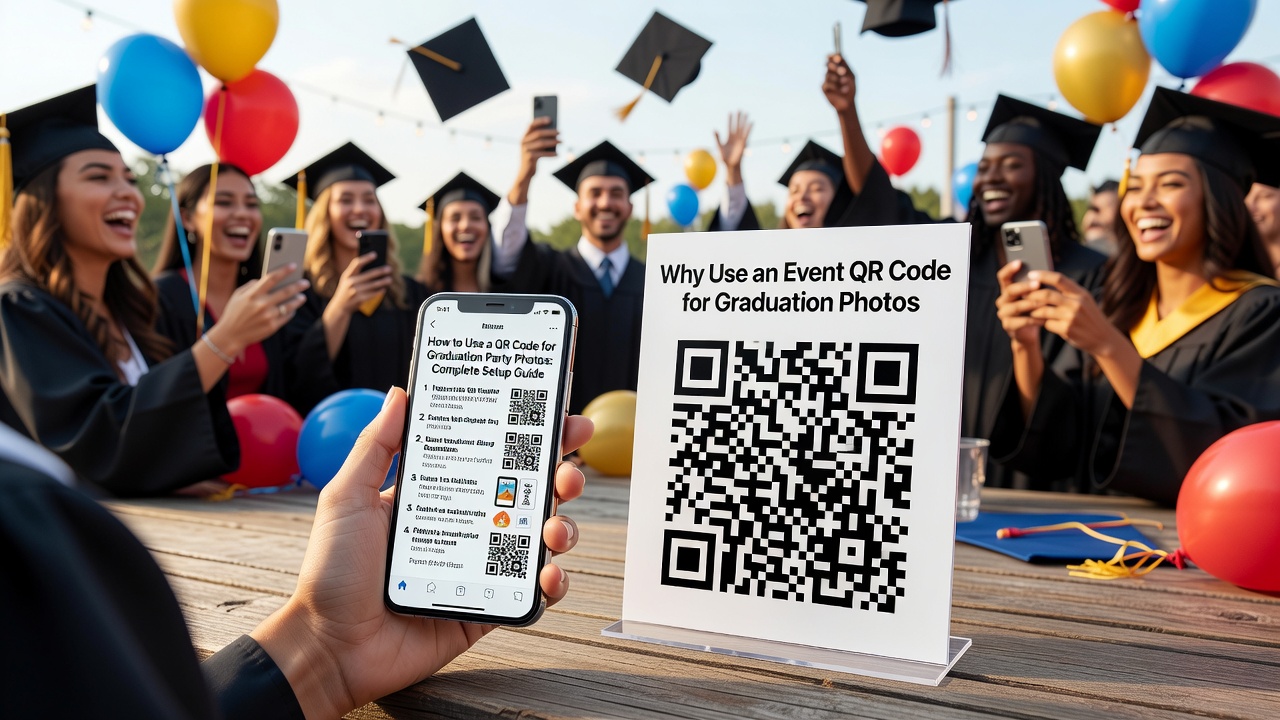
Whether you are hosting one big party or a series of events — an intimate family dinner, a backyard bash with friends, and a formal university ceremony — this guide walks you through the full setup from QR code creation to photo organization.
Why Use an Event QR Code for Graduation Photos
Graduation season means multiple events, dozens of guests, and hundreds of photos spread across different phones. An event QR code solves three big problems:
- Frictionless collection: Guests scan, snap, and upload — no app downloads, no account creation, no “send me those photos later.”
- Multi-event coverage: One QR code can route photos from every celebration into a single organized album, or you can create unique codes per event for cleaner sorting.
- No missed memories: The cousin who only stayed for dinner, the roommate who left early — everyone gets the same upload link before they walk out the door.
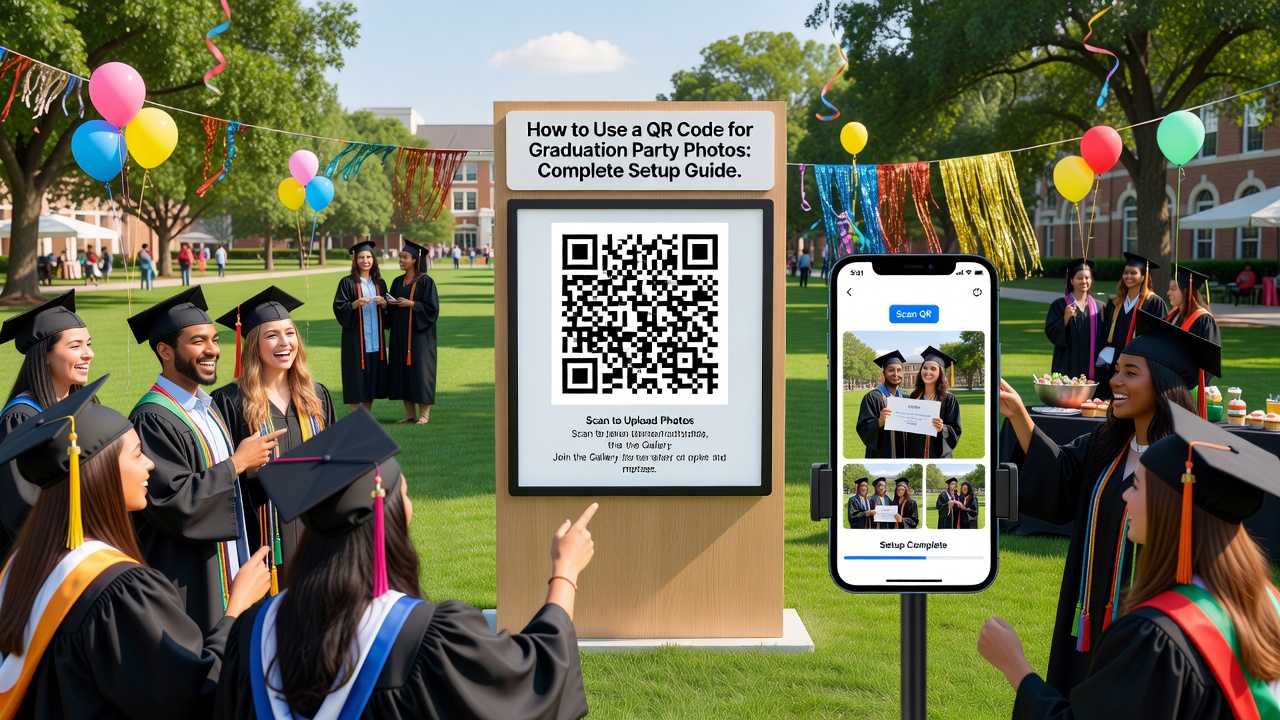
Step 1: Choose a QR Code Photo Collection Platform
Several free and paid platforms let you generate an event QR code that links to a photo upload page. Popular options include:
- Google Drive / Google Photos: Create a shared album and generate a QR code linking to the upload URL. Free and familiar to most guests.
- Dropbox File Requests: Create a file request link, then turn it into a QR code. Guests upload without needing a Dropbox account.
- Dedicated photo-sharing apps (Picshots, WedPlanner, etc.): These platforms are built for event photo collection and often generate QR codes automatically with built-in organization features.
- QR Code Generator + custom upload form: Use a service like qr-code-generator.com paired with a simple Google Form or Jotform for maximum control.
For multi-event graduation celebrations, a dedicated platform often saves time because it handles album organization, guest access, and QR generation in one place.
Step 2: Generate Your Event QR Code
Once you have chosen a platform and created your shared album or upload link, generate the QR code:
- Copy the full URL of your photo upload page or shared album.
- Paste it into a QR code generator (most platforms offer this built-in, or use a free generator like QR Code Generator or goqr.me).
- Choose a high-resolution PNG or SVG format so the code stays crisp when printed at large sizes.
- Test the QR code by scanning it with your own phone before the event. This catches broken links before guests arrive.
- Optionally customize the QR code with your school colors or a graduation cap icon in the center — but keep at least 20% quiet zone (empty margin) around the code so scanners can still read it.
If you are running multiple events, decide on your strategy: one master QR code for all celebrations, or individual codes per event. A single code is simpler; per-event codes make sorting easier later.
Step 3: Place QR Codes at Each Celebration
Strategic placement is what makes an event QR code actually work. Guests need to see it and scan it without being asked twice.
For an Intimate Family Dinner
- Print a small QR code card at each place setting or beside the menu.
- Mention it during a toast: “If you take any photos tonight, scan the code on your plate card to share them with us.”
- Place one framed QR code near the entrance or gift table.
For a Large Graduation Party
- Print table tents with the QR code for every dining or lounge table.
- Display a large QR code poster near the photo booth, dessert table, or bar — high-traffic spots where guests naturally pause.
- Include the QR code on any party favor tags or thank-you cards handed out at the door.
- Ask the DJ or MC to announce it once during the event.
For the Formal Ceremony
- Print a small QR code sticker for the back of your phone or your guests’ programs.
- Share the QR code image in any group chat or family thread before the ceremony starts.
- If the venue has a digital screen, ask if they can display the QR code during the post-ceremony reception.
Step 4: Guide Guests Through Scanning
Not every guest is a QR code expert. Make scanning effortless:
- Add a one-line instruction beneath every QR code: “Scan with your phone camera to share photos.”
- Test with older relatives first. If grandparents can scan it, anyone can. Walk them through it once if needed.
- Keep the upload page mobile-optimized. Most guests will scan and upload from their phone — the page must load fast and accept photos without friction.
- Allow uploads without sign-in when possible. Requiring an account or app download will cut your participation rate dramatically.
Step 5: Organize Photos Across Multiple Events
After the celebrations wind down, you will have a shared album full of photos from different guests and different events. Here is how to keep it organized:
- If you used one master QR code: Sort photos by date and ask guests to add captions or event names. Google Photos and most platforms auto-group by date taken.
- If you used per-event QR codes: Each event already has its own sub-album. Merge them into a master “Graduation 2026” album and label sub-albums by event name.
- Tag key people. Ask a few close friends or family members to help identify and tag people in group shots so you can quickly find photos of specific guests.
- Create a highlights reel. Pull the best 20-30 photos into a separate shared album or slideshow for social media, thank-you cards, or a printed grad album.
Pro Tips for Maximum Photo Collection
- Send the QR code link digitally too. Not everyone will scan at the event — share the upload link in a group text or email afterward as a follow-up reminder.
- Set a deadline. “Upload by July 1st so I can make the album” gives guests a reason to act before they forget.
- Use the event QR code on invitations. Add it to digital or print invites so guests are already familiar with it before they arrive.
- Offer a small incentive. “Everyone who uploads photos gets entered to win a $25 gift card” works surprisingly well for larger parties.
Conclusion
Using an event QR code to collect graduation party photos turns a chaotic, post-event photo chase into a simple scan-and-share workflow. With the right platform, strategic QR code placement, and a few guest-friendly instructions, you will capture every smile, toast, and cap toss across all your celebrations — without lifting a finger after the party ends. Set it up once, and let your guests do the rest.
Frequently Asked Questions
Do guests need to download an app to scan the event QR code?
No. Most modern smartphones can scan QR codes directly through the built-in camera app. Guests simply open their camera, point it at the code, and tap the notification that appears.
Can I use the same QR code for multiple graduation events?
Yes. One QR code can link to a single shared album that collects photos from all your celebrations. Alternatively, create separate QR codes per event if you prefer photos auto-organized by celebration.
What happens if a guest uploads a huge video file?
Most photo-sharing platforms have file size limits or automatically compress large uploads. If you are using Google Drive or Dropbox, you may want to set upload guidelines (e.g., photos only, no videos) on the QR code instruction card.
How long should I keep the QR code active after the parties?
Keep the upload link live for at least two to four weeks after your last event. Send a reminder message to your guest group chat one week before closing it so latecomers can still contribute.
Quick answers
Do guests need to download an app to scan the event QR code?
No. Most modern smartphones can scan QR codes directly through the built-in camera app. Guests simply open their camera, point it at the code, and tap the notification that appears.
Can I use the same QR code for multiple graduation events?
Yes. One QR code can link to a single shared album that collects photos from all your celebrations. Alternatively, create separate QR codes per event if you prefer photos auto-organized by celebration.
What happens if a guest uploads a huge video file?
Most photo-sharing platforms have file size limits or automatically compress large uploads. If you are using Google Drive or Dropbox, you may want to set upload guidelines (e.g., photos only, no videos) on the QR code instruction card.
How long should I keep the QR code active after the parties?
Keep the upload link live for at least two to four weeks after your last event. Send a reminder message to your guest group chat one week before closing it so latecomers can still contribute.