
Event Planning
How to Use an Event QR Code for Bachelor Party Photos: Tips and Ideas
Set up an event QR code for bachelor party photo sharing — tips for night outs, weekend trips, and destination celebrations.
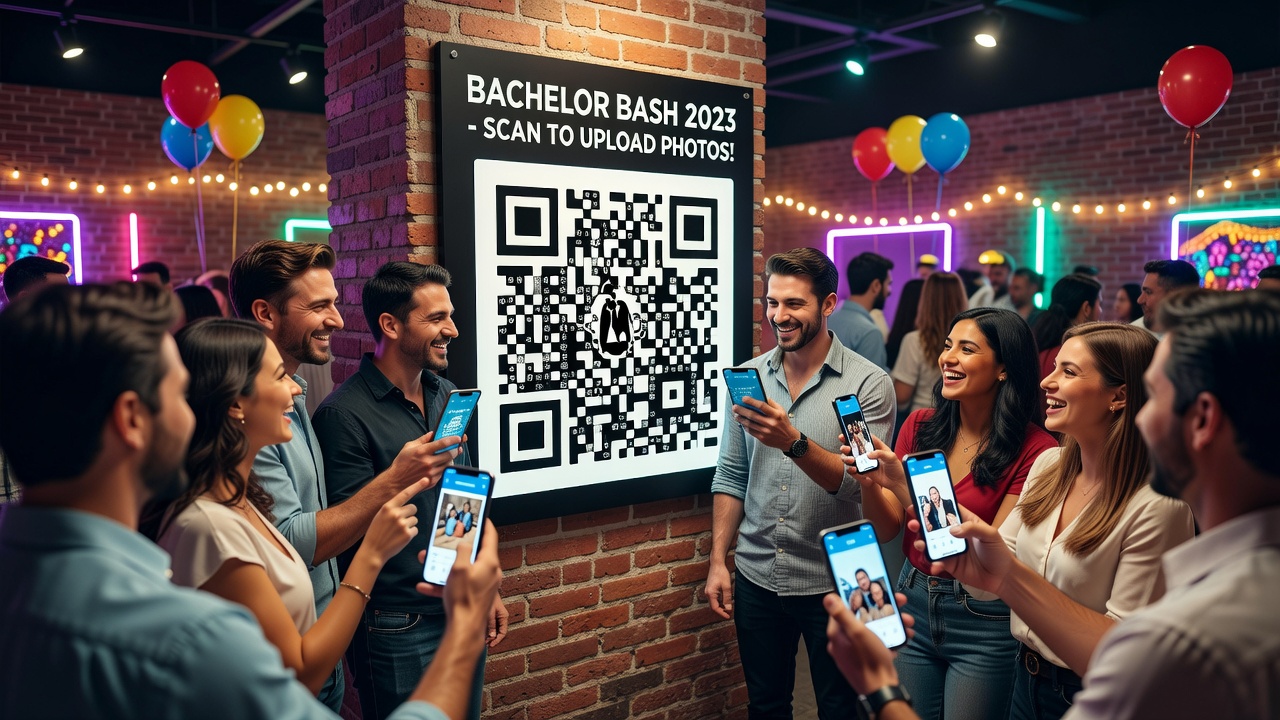
Why You Need a QR Code for Bachelor Party Photos
An event QR code is the simplest way to collect every photo from a bachelor party without anyone playing designated photographer. Between the toasts, the stories, and the questionable decisions, nobody wants that job. And even when someone does snap a great shot, those photos end up scattered across a dozen different phones, buried in text threads, or lost to the group chat abyss.
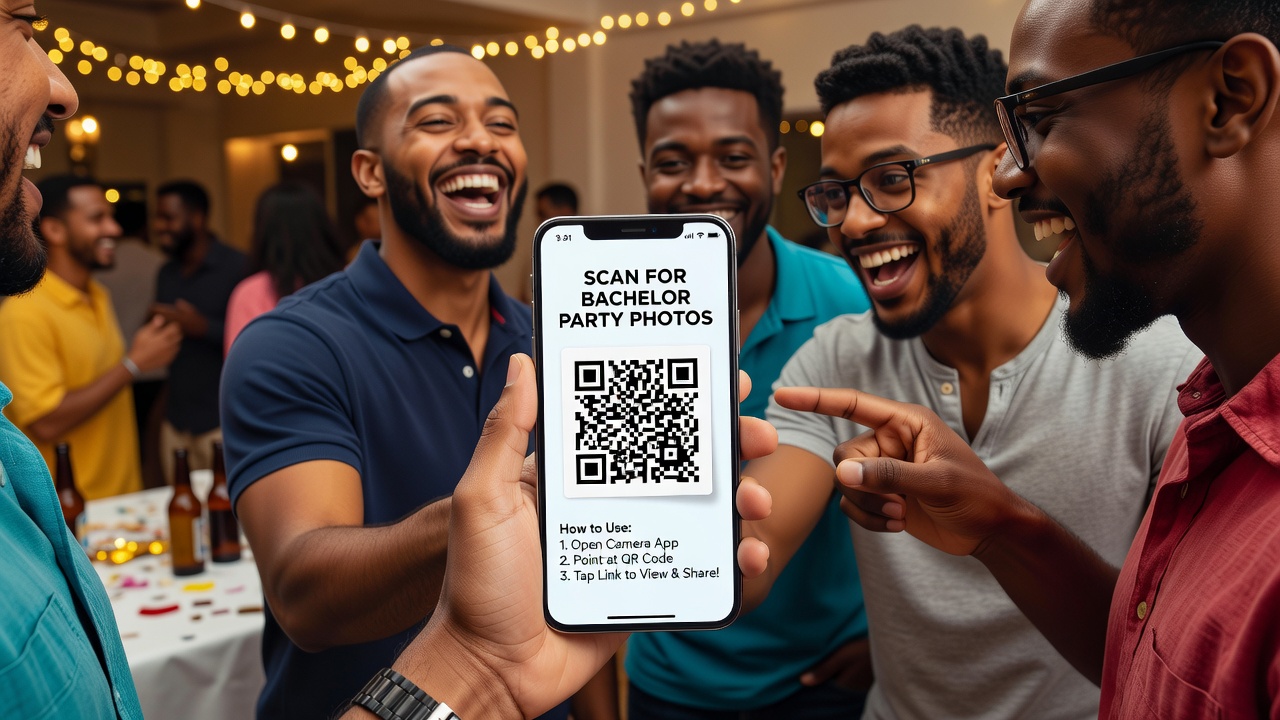
One scan, one shared album, and every guest becomes a contributor. No app downloads, no account creation, no "hey can you AirDrop that to me?" — just point, scan, and share. By the end of the night, you've got a complete visual record of the celebration from every angle, curated by the people who lived it.
Whether you're planning a single wild night downtown, a weekend cabin getaway, or a full-blown destination celebration in another country, a QR code photo-sharing setup makes sure nobody misses a moment — and nobody loses a single photo.
How Event QR Code Photo Sharing Works
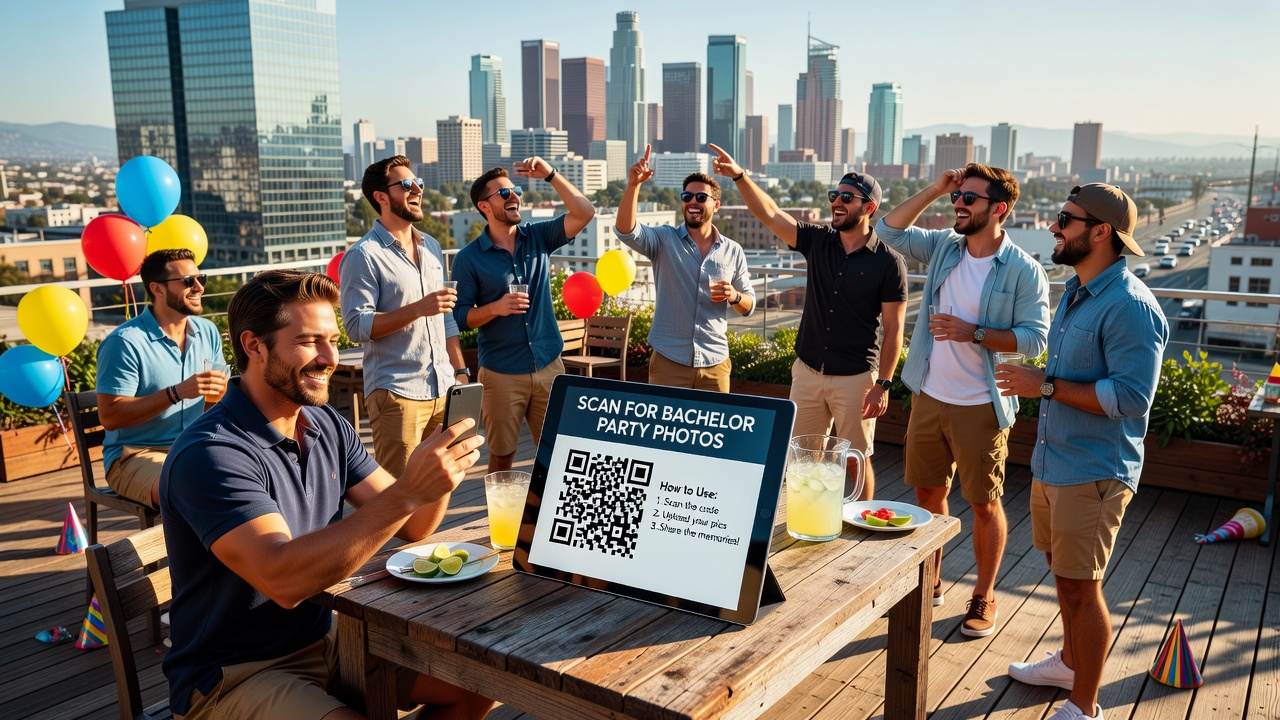
The concept is straightforward: you generate a QR code that links to a shared photo album or upload page. Guests scan it with their phone camera, and they're taken directly to a place where they can drop their photos and videos. Everything lands in one central collection that everyone can view — and the organizer can download afterward.
Most modern smartphones (iOS 11+ and Android 8+) have built-in QR code scanning through the native camera app, so there's zero friction for guests. No one needs to download a separate scanner app.
Here's the basic flow:
- Create a shared album on a platform that supports guest uploads via link
- Generate a QR code from that link using a free QR code generator
- Display the QR code at the party — on a printed sign, a table tent, or even a custom sticker on drink cups
- Guests scan and upload throughout the event
- Everyone enjoys the full collection the next morning (hangover permitting)
Best Platforms for QR Code Photo Sharing at Events
Not all photo-sharing platforms are created equal. Here are the top options for bachelor party use, each with different strengths depending on your group's vibe and tech comfort level.
1. Google Photos Shared Album
Best for: Groups that want a dead-simple, no-signup experience.
Create a shared album in Google Photos, turn on "Collaborate" so anyone with the link can add photos, and generate a QR code from that link. Photos upload in full resolution, and the album owner can download everything afterward. The downside: guests need a Google account to contribute, which most people have but not everyone.
Free tier: 15 GB shared across Google services. Plenty for a weekend of photos.
2. Apple Shared Album (iCloud)
Best for: All-iPhone groups.
If your entire bachelor party crew is on iPhone, Apple's Shared Albums are seamless. Create the album, generate a share link, and turn it into a QR code. Photos and videos upload automatically, and everyone with the link can view and contribute. The catch: Android users can only view, not upload, which is a dealbreaker for mixed-device groups.
Free tier: Shared Albums don't count against iCloud storage.
3. WedUploader / Guest Photo Sharing Apps
Best for: Groups that want a dedicated event photo-sharing experience.
Platforms like WedUploader, GuestPix, and Capsule are built specifically for event photo sharing. Guests scan a QR code, upload photos directly through a browser (no app needed), and everything lands in a private gallery. Many include features like real-time slideshows, moderation (so nothing too incriminating goes public), and bulk downloads. Most offer free tiers for single events.
Free tier: Typically limited to 50-100 photos per event on free plans.
4. Dropbox File Request
Best for: Groups that want full-resolution, organized file collection.
Dropbox File Requests let anyone upload files to a designated folder without needing a Dropbox account. Create a file request, generate a QR code from the link, and guests can upload photos and videos directly. Files are organized by uploader name, and you get full-resolution originals. The free tier gives you 2 GB, which is tight for video-heavy events.
Free tier: 2 GB total storage.
5. QR Code Generator Tools
Best for: Creating the actual QR code once you have your album link.
Once you've chosen your photo-sharing platform and have a share link, use a free QR code generator to turn that link into a scannable code. Top options include:
- QR Code Monkey — Free, no signup, lets you customize colors and add a logo (like a groom-themed icon) to the center
- Canva — Built-in QR code generator inside their design tool; perfect if you're already designing a party sign or invitation
- Bitly — URL shortener with QR code generation; also gives you click tracking so you can see how many people scanned
- Adobe Express — Free QR code generator with style customization
Setting Up Your Event QR Code: Step-by-Step
Here's the complete setup process, from choosing your platform to testing the final QR code.
Step 1: Choose Your Photo-Sharing Platform
Pick from the options above based on your group's needs. For mixed-device groups (iPhone + Android), Google Photos or a dedicated event app like WedUploader are your safest bets. For all-iPhone crews, Apple Shared Albums are the smoothest experience.
Step 2: Create the Shared Album or Upload Page
Set up the album, turn on collaboration or guest upload permissions, and copy the share link. Test it from a different device to make sure the permissions work — there's nothing worse than guests scanning a QR code that leads to a "request access" screen.
Step 3: Generate Your QR Code
Paste your share link into a QR code generator (QR Code Monkey is the most reliable free option). Customize the colors to match your party theme — navy and gold for a classy vibe, or neon green for a Vegas blowout. Download the QR code as a high-resolution PNG (at least 1000x1000 pixels for printing).
Step 4: Test, Test, Test
Scan the QR code with at least two different phones (one iPhone, one Android if possible). Make sure it opens the right page, the upload button is obvious, and no login walls block the path. Do this before the party starts — you won't have time to troubleshoot once the drinks are flowing.
Step 5: Display It Prominently
Print the QR code and place it where people naturally gather. Ideas: a framed sign at the bar area, a sticker on the cooler, a table tent at dinner, or even printed on custom coasters. The more visible it is, the more photos you'll collect.
QR Code Photo Sharing for a Night Out
A single-night bachelor party — bar hopping, a nice dinner, maybe a club or a show — is the most common format, and it's also the one where photos are most likely to get lost. Everyone's moving fast, switching venues, and by 2 AM nobody remembers what they took.
Setup tips for a night out:
- Print multiple small QR code cards — business card size works perfectly. Hand one to each guest at the start of the night so they can scan whenever they want, even if the group splits up.
- Stick a QR code on the party bus or limo — if you're using transportation, that's a captive audience with nothing to do but take photos.
- Set up the album before dinner — the first round of photos (everyone dressed up, pre-game energy) are often the best ones. Don't miss them.
- Use a platform with real-time uploads — Google Photos or WedUploader so photos appear as they're taken. It builds momentum: when people see others contributing, they're more likely to join in.
- Designate a "photo captain" — one person (not the groom) who reminds people to scan and upload at each venue change.
Creative idea: Turn it into a game. Announce a "Photo of the Night" contest where the best candid shot wins a prize (a round of drinks, a gag gift). People get competitive — and you get more photos.
QR Code Photo Sharing for a Weekend Trip
A weekend bachelor party — think cabin rental, beach house, ski trip, or camping — gives you more time and more photo opportunities. You've got arrival photos, activity shots, cooking disasters, late-night card games, and the inevitable morning-after group selfie.
Setup tips for a weekend trip:
- Create a dedicated event QR code sign — a printed poster or framed sign at the rental house entrance. Make it part of the decor so it doesn't feel like a chore.
- Set up a "photo drop zone" — a physical spot (a table, a corner of the kitchen) with the QR code prominently displayed and a fun sign like "Drop Your Pics Here →"
- Use a platform with album organization — with 48+ hours of photos, you'll want the ability to sort by day or activity. Google Photos lets you add descriptions to photos; WedUploader organizes by upload time.
- Schedule a "photo review" session — on the last morning, gather everyone around a laptop or TV, pull up the shared album, and relive the weekend. It's a great hangover activity and ensures nobody leaves without contributing their best shots.
- Create activity-specific QR codes — if you're doing distinct activities (golf, hiking, brewery tour), print small QR code stickers for each one. Label them so photos stay organized by activity.
Creative idea: Print the QR code on custom koozies or drink sleeves. Every time someone grabs a beer, they see the code. By Sunday morning, you'll have hundreds of photos.
QR Code Photo Sharing for a Destination Celebration
A destination bachelor party — Vegas, Nashville, Mexico, Europe — adds complexity: international data, different time zones, and guests who may not have reliable cell service. But it also produces the most memorable photos, so getting the QR code setup right is worth the extra effort.
Setup tips for a destination celebration:
- Include the QR code in pre-trip materials — add it to the digital invitation, the group chat, and any printed itinerary. Let guests scan and test it before they even leave home.
- Print QR code stickers for luggage tags — a fun touch that also serves a practical purpose: guests can scan as soon as they land.
- Choose a platform that works offline — Google Photos and Dropbox queue uploads when the connection returns. Dedicated event apps may require a live connection. Test this before you go.
- Create a WhatsApp or Telegram group with the QR code pinned — even if the physical QR code gets lost or damaged, everyone has a digital backup in the group chat.
- Account for language barriers — if you're traveling internationally, make sure the upload page works in the local language or is simple enough to navigate without reading. A big "Upload Photos" button with minimal text is ideal.
- Set up a shared Wi-Fi hotspot — if you're somewhere with spotty cell service, a portable Wi-Fi hotspot lets everyone upload photos back at the hotel or rental without burning through international data.
Creative idea: Create a custom landing page (using something simple like Linktree or a Canva site) that has the QR code link, a welcome message, the weekend itinerary, and a live photo feed. It becomes the group's digital headquarters for the entire trip.
Tips for Maximizing Guest Participation
Even the best event QR code setup falls flat if nobody uses it. Here's how to get every guest contributing:
Make It Impossible to Miss
One QR code in one spot isn't enough. Print it on multiple surfaces: the welcome sign, drink coasters, napkins, the bathroom mirror, the group chat, and even a sticker on the groom's back (with his permission, of course). Repetition drives action.
Lead by Example
The organizer and a few pre-briefed friends should upload photos early and often. When other guests see the album filling up, social proof kicks in and they'll want to contribute too. An empty album is intimidating; a lively one is inviting.
Make It a Game
Gamify the photo sharing. Create categories like "Best Candid," "Funniest Face," "Groom's Most Embarrassing Moment," and "Best Group Shot." Announce winners throughout the event. People love a little friendly competition — and you get more photos.
Remove Friction
Test the entire flow from a guest's perspective. Scan the QR code on a phone that isn't logged into any of your accounts. Does it ask for a login? Does it require an app? Does it take more than two taps to upload a photo? Every extra step loses people. The ideal flow: scan → tap "upload" → select photos → done.
Send a Follow-Up Reminder
The morning after (or the day everyone travels home), send a group message with the QR code or link one more time: "If you haven't uploaded your photos yet, here's the link — we're at 87 photos and counting!" The FOMO of seeing a number motivates stragglers.
Offer an Incentive
Promise that everyone who uploads at least 5 photos gets access to the full-resolution album download afterward. Or make it a raffle: every photo uploaded = one entry to win a bottle of the groom's favorite whiskey.
Troubleshooting Common Issues
Things go wrong. Here's how to handle the most common QR code photo-sharing problems:
"The QR Code Won't Scan"
This is almost always a printing or lighting issue. Make sure the QR code is printed at high resolution (300 DPI minimum) and at least 2 inches wide. Avoid glossy paper that creates glare. If you're displaying it digitally (on a TV or tablet), turn up the brightness and disable auto-lock so the screen doesn't go dark.
"It's Asking Me to Sign In"
This is the #1 participation killer. Test your setup from a device that isn't logged into your accounts. Google Photos shared albums require a Google login to contribute — if that's a problem for your group, switch to a platform like Dropbox File Requests or WedUploader that doesn't require account creation for uploaders.
"My Photos Aren't Uploading"
Usually a connectivity issue, especially at destination events. Make sure guests are on Wi-Fi or have a strong cell signal. If you're in a remote area, set up a portable hotspot. Some platforms (Google Photos, Dropbox) will queue uploads and retry when the connection returns — prefer these for destination events.
"Someone Uploaded Something... Inappropriate"
Bachelor parties get wild. If you're using a platform with moderation features (WedUploader, GuestPix), enable the approval setting so photos are reviewed before appearing in the shared album. If not, have a quick conversation with the group about keeping it fun but not career-ending.
After the Party: What to Do With All Those Photos
Once the celebration is over, you've got a treasure trove of memories. Here's what to do with them:
- Download everything — pull all photos and videos from the shared platform and back them up to at least two places (cloud storage + external drive).
- Create a highlight reel — use a free tool like Canva or CapCut to stitch the best photos and video clips into a 2-3 minute recap video. Share it with the group — it'll be the most-watched thing in the group chat for weeks.
- Make a photo book — services like Mixbook or Shutterfly let you create a physical photo book from the shared album. It makes a great gift for the groom.
- Share a curated album — pick the 50-100 best shots and create a "Best Of" album to share with the wider friend group (and the groom's family) who weren't at the party.
- Send individual thank-you photos — find a great candid of each guest and send it to them personally with a thank-you message. It's a small gesture that goes a long way.
Frequently Asked Questions
Do guests need to download an app to use the QR code?
Not if you choose the right platform. Google Photos shared albums, Dropbox File Requests, and dedicated event apps like WedUploader all work through a mobile browser — guests scan the QR code and upload directly. Apple Shared Albums require iPhone users to be signed into iCloud, but no additional app download is needed. Always test your setup on a phone that doesn't have any of your accounts logged in to confirm the experience is friction-free.
Can I use a QR code for video uploads too?
Yes — most photo-sharing platforms support video uploads alongside photos. Google Photos, Dropbox, and WedUploader all accept video files. Keep in mind that videos are much larger than photos, so if you're using a free tier with storage limits (like Dropbox's 2 GB), videos will eat through that quickly. For video-heavy events, Google Photos (15 GB free) or a paid platform upgrade is the better choice.
What if some guests don't have smartphones or data?
For guests without smartphones, designate a "photo buddy" who can upload on their behalf. For guests without data (common at international destination events), set up a shared Wi-Fi hotspot at the hotel or rental, or choose a platform that queues uploads for when they reconnect to Wi-Fi. You can also collect photos the old-fashioned way — have them AirDrop or text their photos to the organizer, who uploads them to the shared album manually.
Start Planning Your Bachelor Party Photo Share Today
An event QR code turns a scattered collection of phone photos into a single, complete story of the bachelor party. It takes about 15 minutes to set up, costs nothing (or very little), and the payoff is a lifetime of memories that don't get lost in the group chat graveyard.
Pick your platform, generate your QR code, test it twice, and print it everywhere. The best bachelor party photos aren't the posed ones — they're the candid moments, the unexpected laughs, and the stories you'll be telling at the wedding and beyond. Make sure you actually get to keep them.
Quick answers
Do guests need to download an app to use the QR code?
Not if you choose the right platform. Google Photos shared albums, Dropbox File Requests, and dedicated event apps like WedUploader all work through a mobile browser — guests scan the QR code and upload directly. Apple Shared Albums require iPhone users to be signed into iCloud, but no additional app download is needed. Always test your setup on a phone that doesn't have any of your accounts logged in to confirm the experience is friction-free.
Can I use a QR code for video uploads too?
Yes — most photo-sharing platforms support video uploads alongside photos. Google Photos, Dropbox, and WedUploader all accept video files. Keep in mind that videos are much larger than photos, so if you're using a free tier with storage limits (like Dropbox's 2 GB), videos will eat through that quickly. For video-heavy events, Google Photos (15 GB free) or a paid platform upgrade is the better choice.
What if some guests don't have smartphones or data?
For guests without smartphones, designate a 'photo buddy' who can upload on their behalf. For guests without data (common at international destination events), set up a shared Wi-Fi hotspot at the hotel or rental, or choose a platform that queues uploads for when they reconnect to Wi-Fi. You can also collect photos the old-fashioned way — have them AirDrop or text their photos to the organizer, who uploads them to the shared album manually.